

Use with an AI agent
Connect Synq's MCP server to Claude, ChatGPT, Claude Code or Cursor, ask in your own words, and approve the changes that always ask.
Synq's MCP server lets an AI agent set up and run your Synq orgs for you: put sign-in in front of an app, find out why someone can't sign in, style a brand's sign-in page, check your webhooks. The agent signs in as you, so it can do what your role in each org allows. Ordinary changes happen as soon as it asks, by default, and changes to money, people and sign-in security, and those that make a secret, wait for you to approve them.
The URL
Give your agent https://api.synq.build/mcp. It's a remote server over Streamable HTTP, so there's nothing to install.
Its tools are made from what people come to do, and MCP tools lists each one with its inputs, impact and scope. MCP says how a host connects and signs you in.
The first time your agent connects, it signs you in at Synq with OAuth: there's no API key to paste. It asks for synq.read, to read, and synq.write, to make changes and ask for them, both at once, so you sign in once. A host that asks for synq.read alone sees only the tools that read.
Add it to your agent
Each host's steps below were checked against its own docs on October 31, 2026, and ChatGPT's against its own screens and docs on November 11, 2026. If your host's screens have moved since, its docs, linked from each, have the current steps.
Claude
In Claude on the web, Claude Desktop or Cowork (Anthropic's guide to custom connectors):
- Open Customize, then Connectors.
- Select + Add, then Add custom connector.
- Name it
Synq, enter the URL above and select Continue. - Keep the authentication Claude detects and select Continue. Under Authentication choose Sign in now, and under OAuth client Use Claude's published identity, then select Add.
- Sign in at Synq and allow what Claude asks for.
To use it in a chat, select +, then Connectors, and turn Synq on.
On a Team or Enterprise plan, an owner adds the connector first, in Organization settings, then Connectors, with Add, Custom and Web. Each member then finds it under Customize, Connectors and selects Connect, so everyone signs in to Synq as themselves.
ChatGPT
In ChatGPT on the web (OpenAI's guide to connecting an MCP server):
-
Open Settings, then Plugins, select Add, then Add custom MCP server.
-
Name it
Synq, enter the URL above under Connection and keep OAuth under Authentication. -
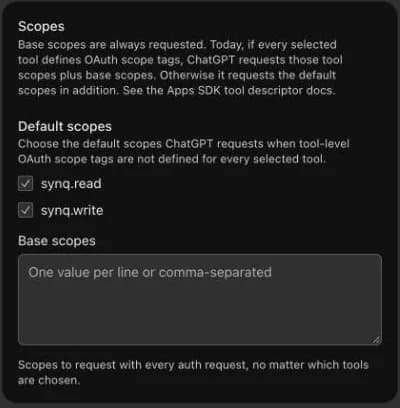
Open Advanced OAuth settings to see what ChatGPT found on Synq's server. The registration method is Client Identifier Metadata Document (CIMD): ChatGPT signs in with its own published identity, so nothing is registered ahead of time. Under Default scopes,
synq.readandsynq.writeare both chosen. Keep both, so you sign in once.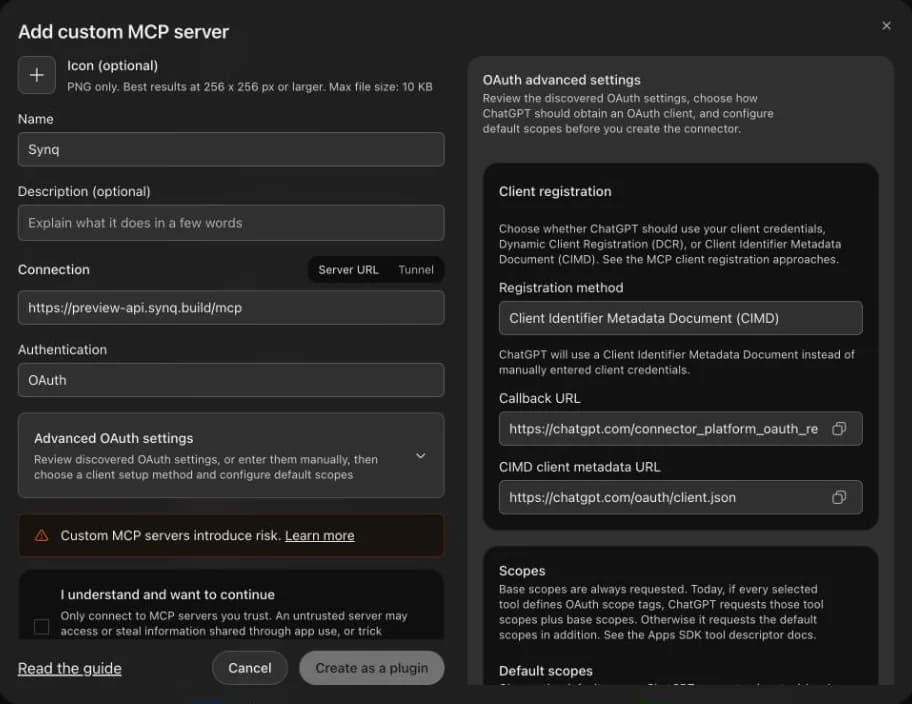
-
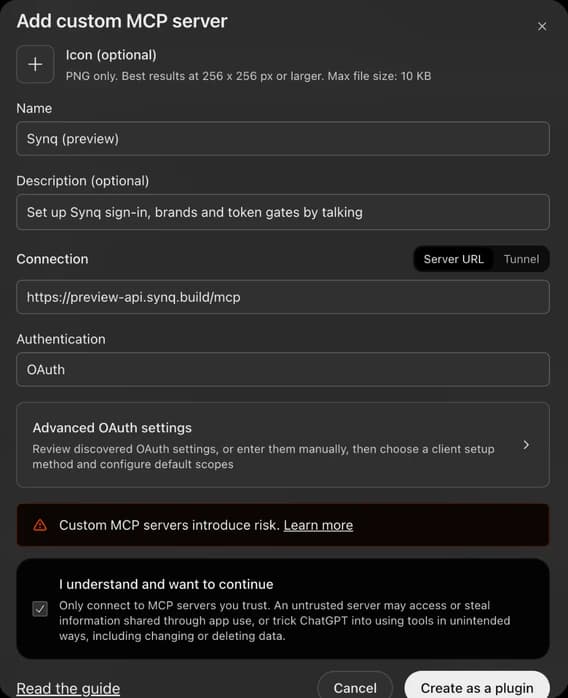
At the end of the form, ChatGPT warns that custom MCP servers introduce risk. That's ChatGPT's own confirmation, not a Synq screen: tick I understand and want to continue, then select Create as a plugin.
-
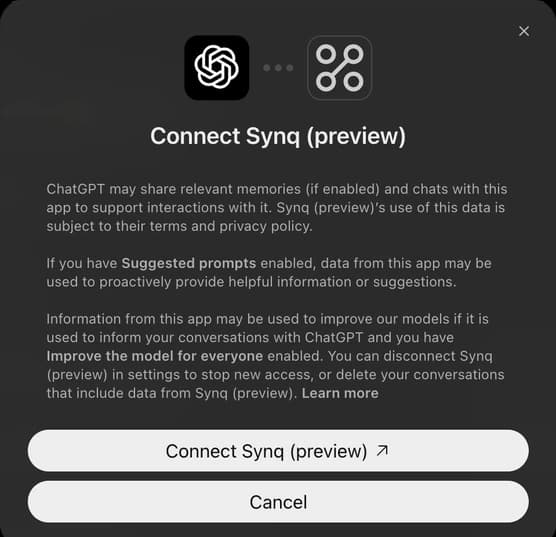
ChatGPT asks you to connect Synq and says what it may share with it. Select Connect Synq, which opens Synq's sign-in.
Sign in at Synq. Synq then asks Allow ChatGPT to use your Synq account? It says Synq hasn't checked the app, since it registered itself, that
chatgpt.compublishes it, what it asks for and how long it stays connected. Select Allow, and Synq sends you back to ChatGPT, which shows the tools it found on Synq's server.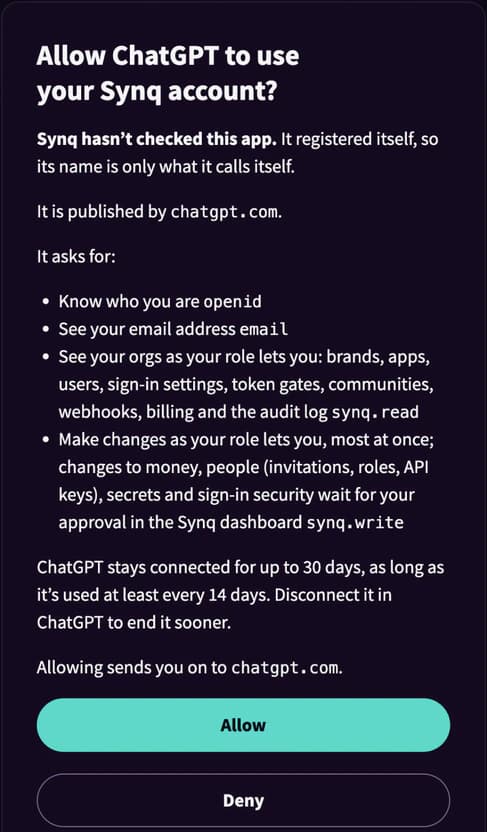
The screenshots come from a run on Synq's preview, so they show preview's URL and, from step 4, the name Synq (preview).
To use it, start a new chat, type @ in the prompt box and choose Synq.
ChatGPT's OpenID support, at the end of Advanced OAuth settings, is on by default, so ChatGPT also asks to know who you are (openid) and to see your email address (email), and Synq's consent page lists both. Synq's tools need neither, so you can turn OIDC enabled off there before you create the plugin.
Claude Code
Run this in your project's folder (Claude Code's MCP docs):
claude mcp add --transport http synq 'https://api.synq.build/mcp'That's claude mcp add --transport http synq and the URL above, in single quotes: its ? would otherwise be expanded by shells such as zsh. Then run /mcp in Claude Code, choose synq and sign in at Synq in the browser it opens.
Add --scope user before the URL to use Synq in all your projects, or --scope project to share the server with your team in the project's .mcp.json. It holds only the URL, and each person still signs in as themselves.
Cursor
Add Synq to .cursor/mcp.json in your project, or to ~/.cursor/mcp.json to use it everywhere (Cursor's MCP docs). If the file has other servers already, add synq beside them under mcpServers:
{
  "mcpServers": {
    "synq": {
      "url": "https://api.synq.build/mcp"
    }
  }
}
Cursor finds Synq's sign-in from the server and signs you in with OAuth and PKCE the first time it connects. Turn the server on or off on Cursor's Customize page. The Add to Cursor button on the Synq dashboard's Get started page adds the same server.
Any other host
Any MCP host that supports remote servers over Streamable HTTP and OAuth connects the same way. Add Synq by its URL, https://api.synq.build/mcp, wherever the host adds a remote or custom server, and sign in at Synq when it asks. MCP describes what a host does to sign you in.
Ask in your own words
Say what you want done. The agent starts with get_connection, which says who you are, your orgs, your role across each and in each of its brands, what this connection may do and what to call next. Your agent holds exactly your roles: a brand you hold no role in is one it can't see either (Access). The tools take the names you use, such as your org's slug or an app's name, as well as ids, and each answer says what it found, in plain words, with a link to its page in the dashboard.
These are some of the goals Synq's own MCP evaluation runs its agents through:
- Put Synq sign-in in front of my Next.js app at
https://shop.acme.com, in our brand "Acme". Call the app "Shop", and tell me exactly what to put in my code. ana@acme.comsays they can't sign in to our apps on the brand "Acme". Why, and what should I do about it?- In our brand "Acme", change the name of
ana@acme.comto "Ana Lima". - The same, from a host that connected with
synq.readalone and sees only the tools that read: in our brand "Acme", change the name ofana@acme.comto "Ana Lima". The agent finds it can only read and asks you to let it change things, and you sign in again to allow them. - Block
leo@acme.comfrom signing in to our brand "Acme". They left the company. - Make the sign-in page of our brand "Acme" match our brand: buttons and links in #4f46e5, on a white page. Tell me how to undo it if I don't like it.
- Let people sign in with Discord on our brand "Acme".
- Could we put the sign-in of our brand "Acme" on login.acme.com? Don't change anything yet: just tell me what it would take.
- Our Synq webhooks seem to be failing. Find out what our endpoint answered, explain what to fix, and tell me how to check it after I fix it.
- Synq's deliveries to my webhook endpoint at
https://acme.com/webhooks/synqfailed while it was down. Send the failed ones again, all of them, even if they fail again: I'm watching the endpoint's logs while I fix it. - Which Discord servers and Telegram groups has our Synq org connected?
- On our brand "Acme", change the Discord bot's "Not met yet" message, the one people see when their wallets don't qualify for a role yet, to: Not yet: your wallets don't hold
{missing}. Your profile shows what counts. - Only let people who hold at least 1 wrapped SOL (mint
So11111111111111111111111111111111111111112, on Solana devnet) sign in to the apps of our brand "Acme Holders". Call the gate "Holders". - What plan is our Synq org on, and what would it cost us to move to Pro?
- Our deploy server's Synq API key, "Deploys", gets a 404 that says "No such brand." when it lists the apps of our brand "Kids", which is right there in the dashboard. Why, and what should I do about it?
- We're launching Orchard today as its own brand with its own accounts. Set it up end to end: make the brand "Orchard" (issuer slug
orchard), make its sign-in page ours (buttons and links in #15803d, on a white page), put sign-in in front of our Next.js app "Orchard web" athttps://orchard.acme.com, send the brand'suser.createdevents tohttps://acme.com/webhooks/orchard, and invite our developerdev@acme.comto the org as a member. Then tell me exactly what to put in the app's code.
Hosts that show an MCP server's prompts, often as slash commands, also list Synq's for the same goals, such as add-sign-in-to-my-app and why-cant-they-sign-in.
Try sign-in before your site is up
Ask your agent how to try your sign-in, and it answers with a link from preview_sign_in: your brand's hosted sign-in page, as your users will see it, ending on Synq's own page that says it works and who signed in. It's the link the dashboard's Open sign-in page opens (Getting started). It works once, within 10 minutes, and registers nothing: no app, redirect URI or secret, so you need no site or code yet. It only reads, so an agent you allowed only to read can make one too, with the same permission as the dashboard's link: seeing the brand. get_app_quickstart and get_app point to it.
What your agent can do alone
Every call is made as you, through the management API: your role's permissions in each org, your rate limits, and a row in your org's audit log that names the agent's app. Each tool, and each change update_configuration makes or request_configuration_change asks for, has one of three impact levels. MCP tools gives every tool's and every operation's, and an agent reads the same list, with what always asks, with get_reference, topic approvals.
- Reading changes nothing: what the dashboard shows of your orgs, from brands, apps and users to token gates, Discord servers and Telegram groups, billing and the audit log, never a secret's value.
- Changes made at once. Most changes happen as soon as your agent asks, and the answer says how to undo them: a brand's name, colors, theme and email, a new app with no secret and no addresses yet, ways to sign in, a new token gate or a stricter one, turning one on, users, a webhook's address and events, a community's windows and messages, a member profile, deleting an app or an API, and checks that change nothing, such as testing a token gate's rule or sending a webhook a test event. A high-impact one (
request_app,request_configuration_changeand the other approval tools) answersapprovedwithapplied: trueandapplied_at_once, and its summary starts "Applied now — no approval needed.", then says what changed and how to undo it. Nothing waited: itsapr_…id is only the record your org's audit log links to, which records the change as made by that agent for you, under that approval request (approval_request.applied). Withdry_run,request_brandandupdate_configurationsay what they would do and change nothing. The agent can upload a logo or a background itself (start_file_upload), and then put it in place. - Changes that always ask. Changes to money, people and sign-in security, and those that make a secret, always ask, whatever your approval settings: billing and plans; inviting or removing members, roles and API keys; deleting or moving a brand; an app's redirect and sign-out addresses (which also decide the origins its pages may call Synq from) and how it proves itself; a brand's custom sign-in domain, its sending domains and your org's verified domains; turning a sign-in protection off, such as the breached-password check, PKCE, the consent screen or the refresh-token reuse check (turning one on is made at once); turning a token gate off, deleting it or taking a brand, app, Discord role or Telegram group off it, which lets in people who don't qualify; loosening account linking, such as a longer re-auth window, moving or merging a way in without an emailed code, or taking a provider's word on an email address (
link_by_email,email_authoritative), or changing a brand's own provider's endpoints or the claim that names someone; and a new web or machine app's secret or a webhook's signing secret. The tool answersawaiting_approvalwith anapprove_url, and nothing changes until you approve it (below). - Never a tool. No tool reads a secret's, key's or token's value, takes a credential to paste (a provider app's secret, a bot's token), signs in as someone else, exports in bulk, decides an approval, or deletes or hands over an org. A new app's secret, a webhook's signing secret or a new API key shows once, to you, on the approval page, never to the agent.
What tools answer can include text anyone could have typed, such as a user's chosen name, so the server marks it as data and never as instructions. A model can still be fooled by it, which is why the changes that would do lasting harm always wait for you, and why your agent's host asks you in the chat before a tool runs.
How an approval works
- The agent asks for the change and gives you the
approve_urlfrom the tool's answer, a page in the Synq dashboard. Nothing has changed yet, and the answer says so, and why it waits (asks_because). A change your org's plan doesn't allow, such as a webhook on Starter or an app past its apps, is refused when the agent asks, with the plan that allows it and how to get there (its free trial, for one), so you're never sent to approve what can't be made. - Open it signed in as the same person the agent connected as. Opened signed out, the link first says a change is waiting for you, and signs you in from there; it shows nothing of the change until you have. Only the person who asked can approve or decline it: anyone else signed in is refused, and can ask from their own agent.
- The page says which app asked, by the name it gave when you connected it (such as Claude), when, and until when it waits. Its title names the change, such as "Change an app's redirect URIs" or "Add a custom domain". Then it says what approving does in plain words: what changes, by the names you know it by (a brand, an app, a Discord role, a Telegram group) rather than ids, who it affects, and how to undo it. Last comes exactly what it sets, field by field, each value in words, with a redirect URI it adds marked new. The agent is told the same title and words, so it can tell you what it asked for. A key or an app's secret that approving makes shows once, on that page. A change to money, people or sign-in security takes a fresh sign-in: from the last 5 minutes, or one an earlier approval relied on in the same dashboard session, for 2 hours (the approval window). If yours is older, Approve becomes Sign in again, then approve, which brings you straight back, with Decline beside it: declining never needs a sign-in. Every other change is approved with the session you have.
- Approve or decline it within 15 minutes. A request nobody decides by then expires. Until then it is also under Waiting for you in the dashboard's sidebar, so a link you lost is never a lost request, and your agent finds it with
get_configuration'sapproval_requests. - Tell your agent. It calls
get_approval_requestto see what you decided, and goes on from there.
If you decline, or the request expires, nothing changed: the dashboard and the agent both say "nothing changed", and the agent asks again only if you still want it. Approving makes exactly the change the page showed, as you, through the change's own route in the management API, so its permission and plan checks apply then too. If one refuses it (your plan changed since it was asked, say), nothing changes, the page says what was refused, why and the fix, and the request keeps waiting until it expires; your agent hears the same from get_approval_request. If the request changed after it was asked, it can't be approved: ask again from your agent.
One approval for a whole plan
An agent setting up many things that wait for you asks for the first change, then adds each of the others to that same request (request_configuration_change with add_to, or POST /v1/orgs/{org}/approval-requests/{request}/changes). You get one link and approve the whole plan once. Its page lists every change in the order it's made, each in its own words. Approving makes all of them, or none if one is refused, and that change says why. Each addition gives the request 15 more minutes. A page you opened before the last addition asks you to reload it before you approve. A change added that doesn't have to wait is made at once instead.
An invitation, an API key, a new brand, and a change that makes a secret only you should see (a webhook, or a web or machine app) each get an approval of their own: they can't join a plan's request, and the add_to description says so before an agent tries. A bundle that holds a change to money, people or sign-in security takes a fresh sign-in to approve.
Approving every change
Some people want to see every change before it happens. Two switches in the dashboard make every change your agents ask for wait for you, not only those that always ask. Both are off by default:
- Require approval for every AI agent change, on your org's Security page, for every member of the org. An org admin turns it on or off.
- Ask me to approve what my agents change, on your Your account page, for you alone, in every org you're in.
With either on, every change your agent asks for waits for you, and the tool answers awaiting_approval with asks_because set to approvals_on. Your agent sees which way each org works in each of get_connection's orgs, as approvals (apply_at_once or ask), so it can tell you "this applies right away" or "I'll ask you to approve" before it acts. With both off, what always asks still waits for you: much of a brand's first day does, such as a web app and its secret, a webhook, an invitation and a trial.
Only the dashboard changes either switch, never an agent: an agent turning your approvals off would take away the check on itself. Turning either one on happens at once; turning it off takes a sign-in from the last 5 minutes.
The approval window
Once an approval relies on a fresh sign-in, your approvals in the same dashboard session skip signing in again until 2 hours after that sign-in, like GitHub's sudo mode. The page says so before you approve, for example: "You signed in at 9:12 AM UTC, so you can approve without signing in again until 11:12 AM UTC."
- Each change still has its own page and its own Approve. What gets an approval of its own, and a secret that shows only on its own page, stay as they are.
- It belongs to the session, never the account. Signing out, the session ending (it expires, or you end it under your sessions on Your account) and signing in again each close it, and another device or browser starts without one.
- What takes a fresh sign-in outside an approval still takes one from the last 5 minutes: making an API key or rotating a secret on its own page, deleting the org or your account, and changing how you sign in.
- The two switches above work as they did: they decide which changes wait for you, and the window only how often approving one asks you to sign in again.
GET /v1/approval-windowsays whether it's open and until when. An approved request'srelied_on_sign_insays which sign-in approving it relied on, andwithin_windowwhether it went through on the window.
Disconnecting an agent
An agent you connect stays connected for up to 30 days after you sign in, as long as it's used at least every 14 days, so you don't sign in again every few minutes. Every agent connected to your Synq account is under Connected apps on your Your account page in the dashboard, most recently used first, each with:
- its name, as it gave it when you connected it, and the site that publishes it, such as
claude.ai(an app that registered itself says its name wasn't checked); - what you allowed it, in the words the sign-in page used;
- when you connected it, and when it last used Synq;
- how its changes are made: at once, or, where you or the org turned approvals on, each waiting for your approval, org by org. Changes to money, people and sign-in security, and those that make a secret, always wait. An agent you allowed only to read says so.
Disconnect ends it. It can't renew its access, so what it holds stops working within 10 minutes, and it has to ask you to sign in and allow it again. What it already changed stays. Synq records it in its own audit log as user.consent_revoked. Disconnecting in the host itself ends it too, and so do signing out everywhere and resetting your password.
Your agent can read the list with get_configuration's connected_apps, where it finds itself marked current, but it never disconnects one: who acts for you is yours to decide. Over the management API, a person's credential lists them with GET /v1/connected-apps and disconnects one with DELETE /v1/connected-apps/{connection}.
A connection is yours, not your org's: one agent acts for you in every org you're in, as your role in each allows. So org admins don't see or end it. They decide what members' agents may do through roles, whether every change waits for approval (the org's Security page), and the audit log, which names the agent behind every change it made.